For schools
It starts with who needs you.
Your class page opens on the children who need you today. You see every times-table fact for the whole class on one grid, set work in one tap, and can be the one who hands out the jobs in their world. For Reception, the 7+ and the Year 4 tables check, with times tables and spelling, one price, from £199 a year.
Your own classes start empty: nothing on your screen is ever made up.
Take it with you (PDF):The full packFor teachers
The times-tables grid
Every times-tables fact, for the whole class
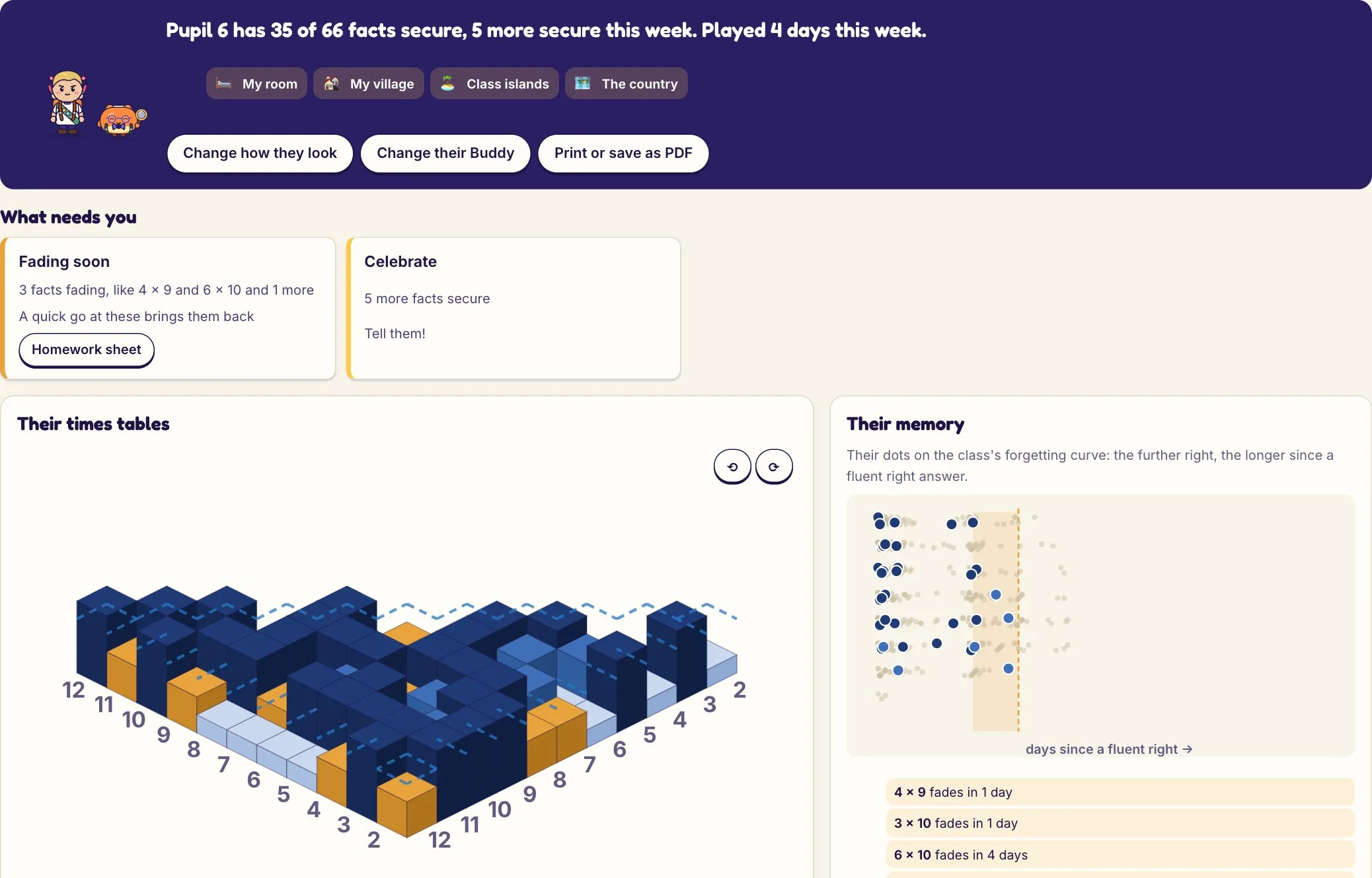
Each square is one fact. The number is how many children know it, and the darker the blue, the more of the class knows it. Amber corners show facts some children are Nearly there on. Tap a square to see the class on that fact.
A child Knows it after three first-try right answers in a row, at least two of them within 6 seconds. We use the same five words everywhere: Not tried yet, Practising, Nearly there, Knows it, Knows it by heart. Each pupil has a printable one-page report too.
Week 8 of 874% of facts known across the class
A sample class of 28 children, eight weeks of play. In Tuckbox Play this flat heatmap is one tap from the class home, beside the Stack, where tapping a fact shows who has it.
The class home
Who needs you, first
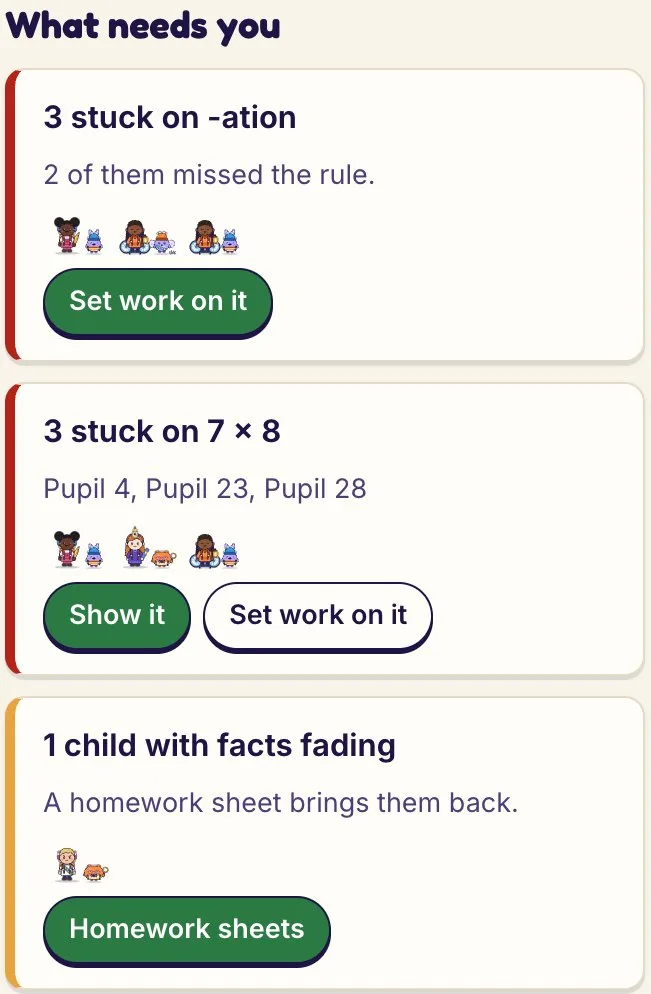
Open your class and it starts with what needs you: children stuck on the same fact or spelling rule, facts that are starting to slip, and anyone who hasn't played this week. Each has one button to act on it.
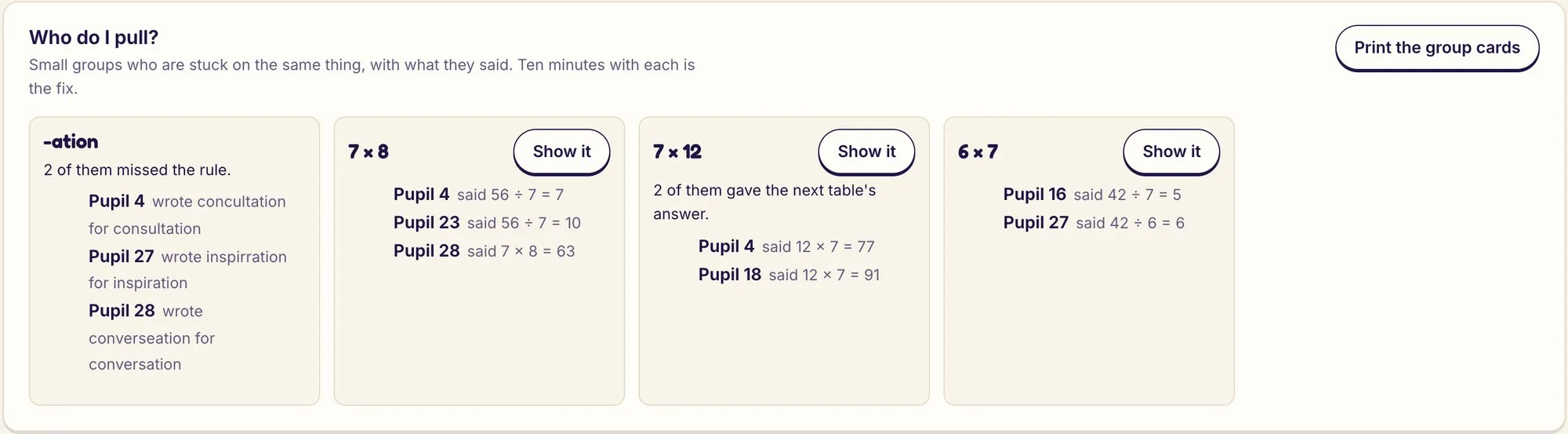
Who do I pull?
Small groups stuck on the same thing, with what each child actually said, and group cards to print. Ten minutes with each group is the fix.
Tomorrow's 10 minutes
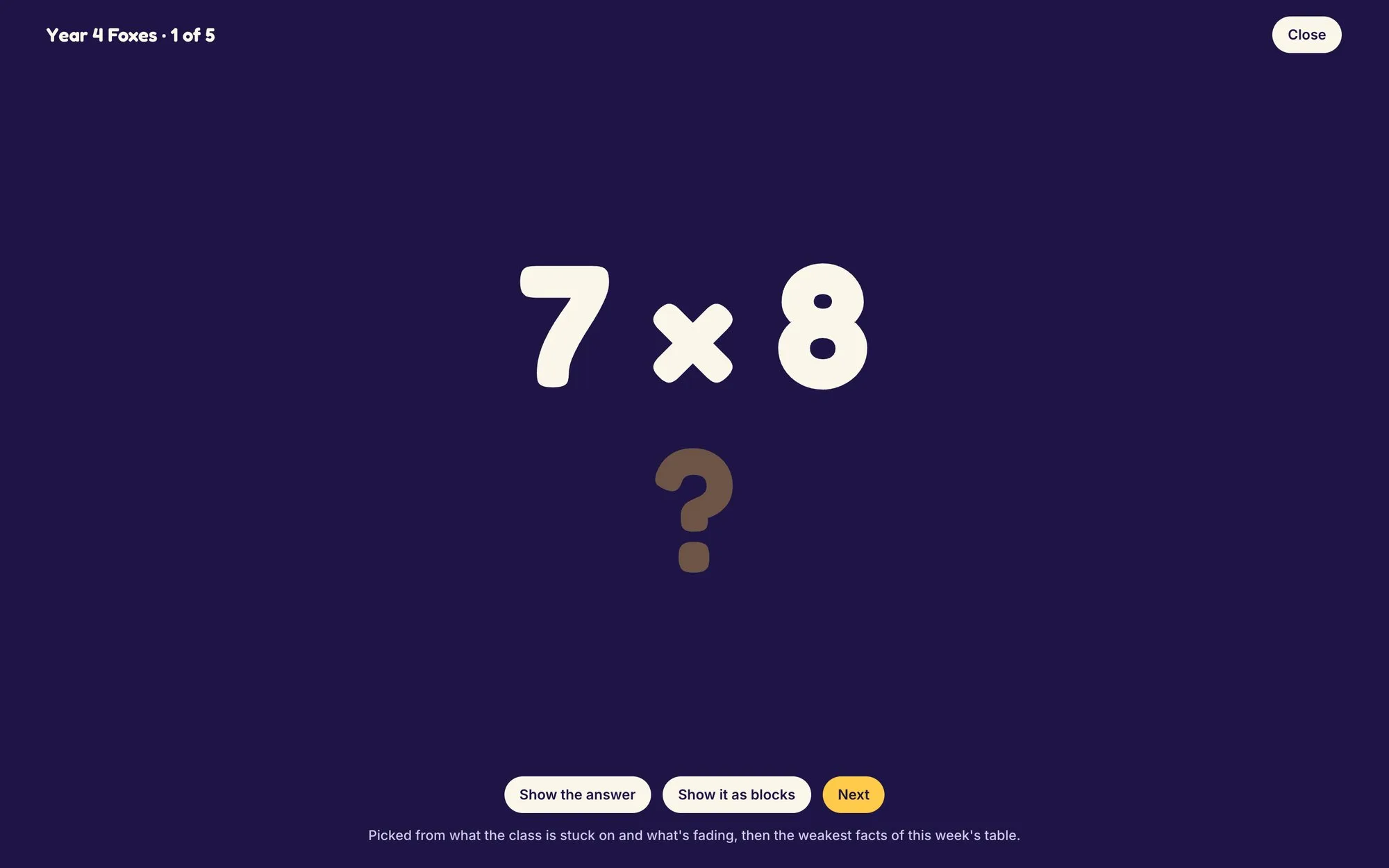
The five facts the class most needs, one at a time, full screen on the board.
The Stack
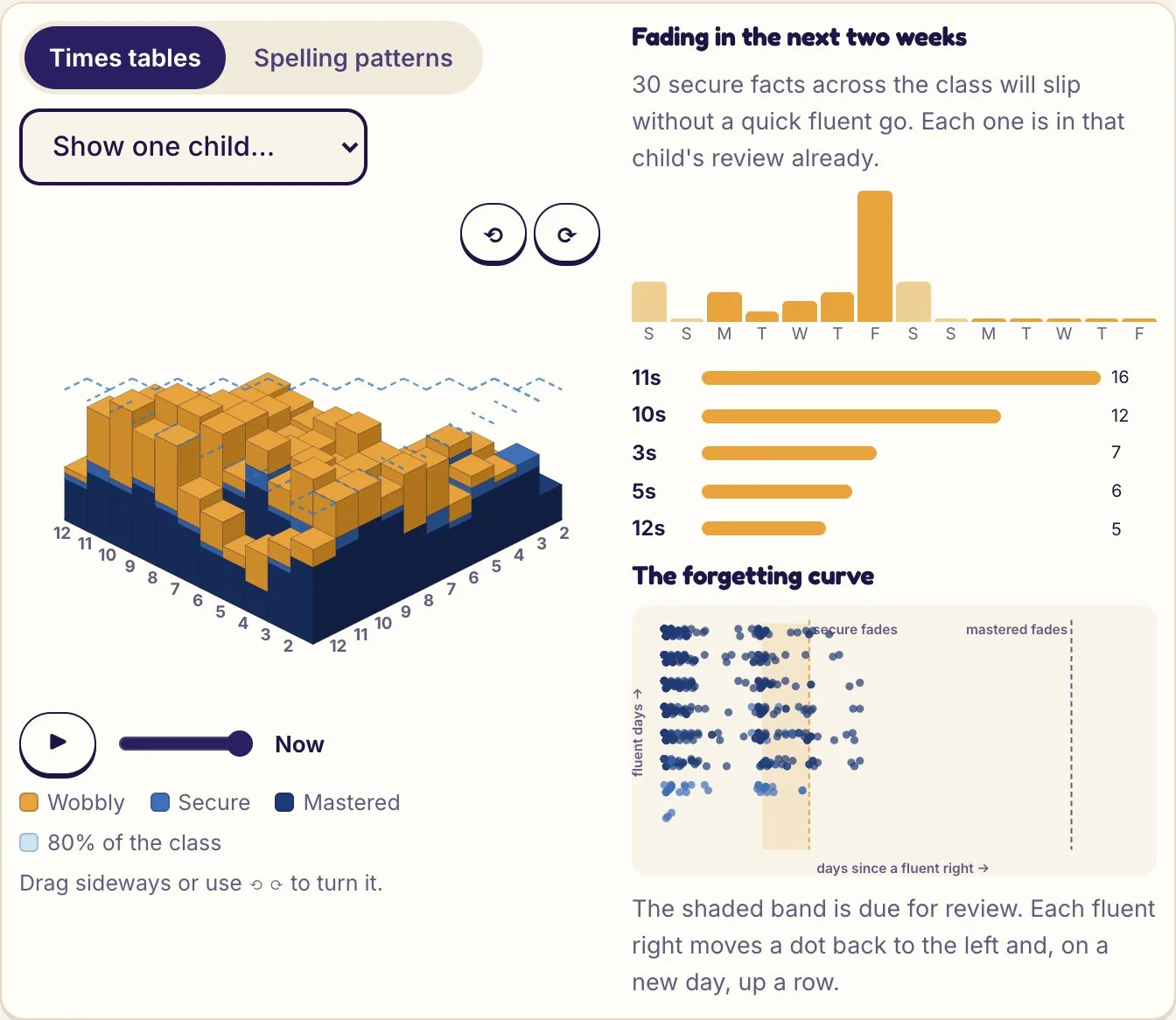
Every fact as a tower, one slab for each child who has it. Pick a child and their slabs light up. Beside it, what will fade in the next fortnight.
Live
During the lesson, the room desk by desk: each child's game, topic and last answers, every five seconds, and who has had a run of wrong ones.
Who hands out the jobs
You, in their world
Every class has someone who hands out the day's jobs and signs the certificates: the grown-up the children meet in their world. In Class settings you choose who it is.
- You. Make yourself in the same character maker the children use, and give the name the class calls you. Set work then arrives as "Mrs Marsh's job".
- A teacher character, ready-made, if you'd rather not be drawn.
- The Helper, Tuckbox's own character, who never claims to be anyone's teacher. It's the default, and who children meet at home.
Change your look once and it changes in every class that has you, on the children's devices the next time they open Tuckbox. The Schoolhouse's lessons are taught by whoever hands out the jobs. The Schoolhouse
Set an exam target for the class
Class settings, Exam targets: the Year 4 tables check or the 7+, with its date. Practice leans towards it, and This week shows how many are on course or ready, who needs more time, and what most of the class still needs. Mark a pupil who isn't sitting it and their practice doesn't change.
Choose what the class works on
"What they're working towards" sets the class's plan: everything for their year, Reception, the 7+, the tables check, times tables only, spelling only, or your own mix. Their world reshapes to fit. A school admin can narrow what the whole school covers. How the plan works

Joining takes a minute
A class code and a picture key on a printed card. No email addresses for children, no passwords to forget.
Set work becomes the day's job
Set the 7s, or a spelling pattern, and it waits for each child as the day's job, with your name on it. Any game can play it.
Tables check practice
25 questions laid out like the Year 4 check, in the check room, opt in. The 6-second clock is the child's choice, and you can switch it off.
Awards and class card sets
Send a certificate or a card to a child, or make a card set for the whole class.
Learning time
For each pupil, the minutes of learning, playing and making over the last week. Learning counts only while answers are flowing.
Learning before making time
Decide how firmly building and decorating wait for learning, for the whole class. Today's job first can't be switched off at home.
Homework sheets
One page for each child, made from what they're stuck on and what's fading, printed in pupil order.
Parents' evening
Each child's page shows what needs you, their times tables, their memory and their spelling. Print it as a one-page report.
Your classes, your data
Everything a teacher looks after, with a button for it
Make it, see it, change it, move it, remove it, and get a copy of what's held. A new class starts empty; children make their own character when they join.
Add pupils
Type names one per line, or just a number of pupils. Names stay on your computer, never on our server; save them to a file and load them on another.
Move and remove
Move a child to another class in the school, or remove them. If a family also holds the child, they only leave your class.
Hand a class over
An admin can hand a class to another teacher, or delete it, with a typed confirm.
Phones, tablets, laptops
Children play in a browser on any of them. See each child's devices and sign out one, or all of them, if a tablet goes missing.
Certificates you can take back
Send a certificate or a card, and withdraw it if you need to: it comes off the child's pinboard.
A copy of everything
Download a child's data, or your own. Every change by a grown-up is written to an audit log.
For heads and school admins
The whole school, class by class
The school view shows every class as a card: its children's faces, how many played and how much they know. Tap a class to open it.
Whoever sets the school up becomes its admin and gets a teacher code. Other teachers join the school with that code, then make their own classes. The admin approves staff, sets their roles, and sees the school's subjects and its plan.
Tables check practice
A practice round, laid out like the real check
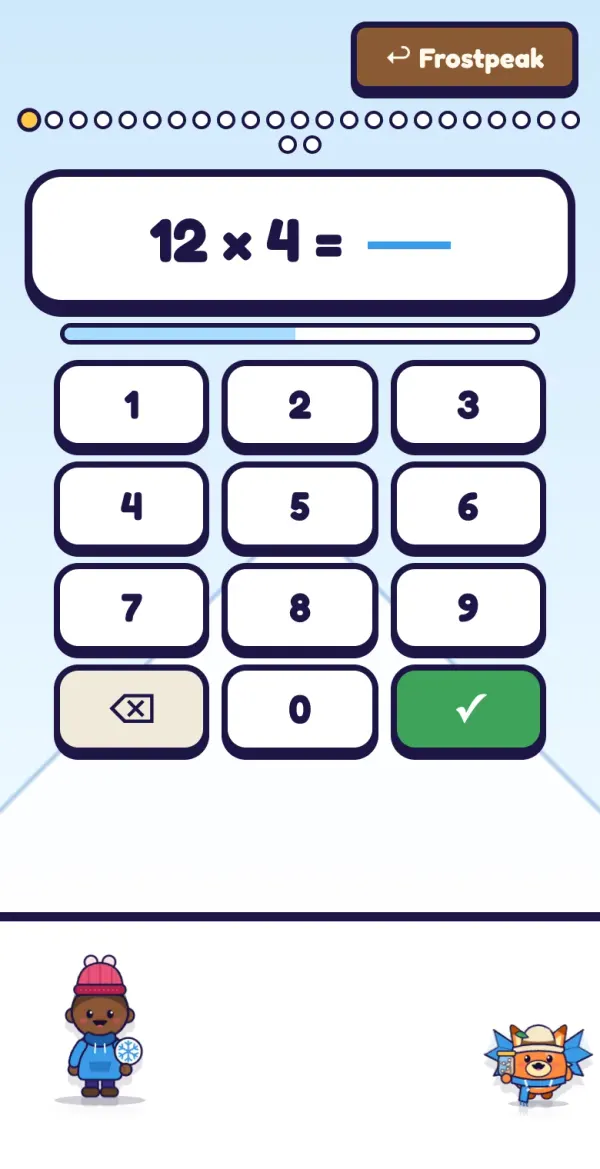
25 questions, multiplication only, with a 6-second clock or none. Children answer on a big on-screen number pad, the same on a tablet, a laptop or a phone. Spelling has a letter pad too, in qwerty or a b c order.
A child who uses Switch Control, VoiceOver or dictation can use the device's own keyboard instead, like the real check's access arrangement for removing the number pad.
Try a round here. It's the real practice, with a made-up child, and nothing is saved.
Together, never ranked
The class builds together
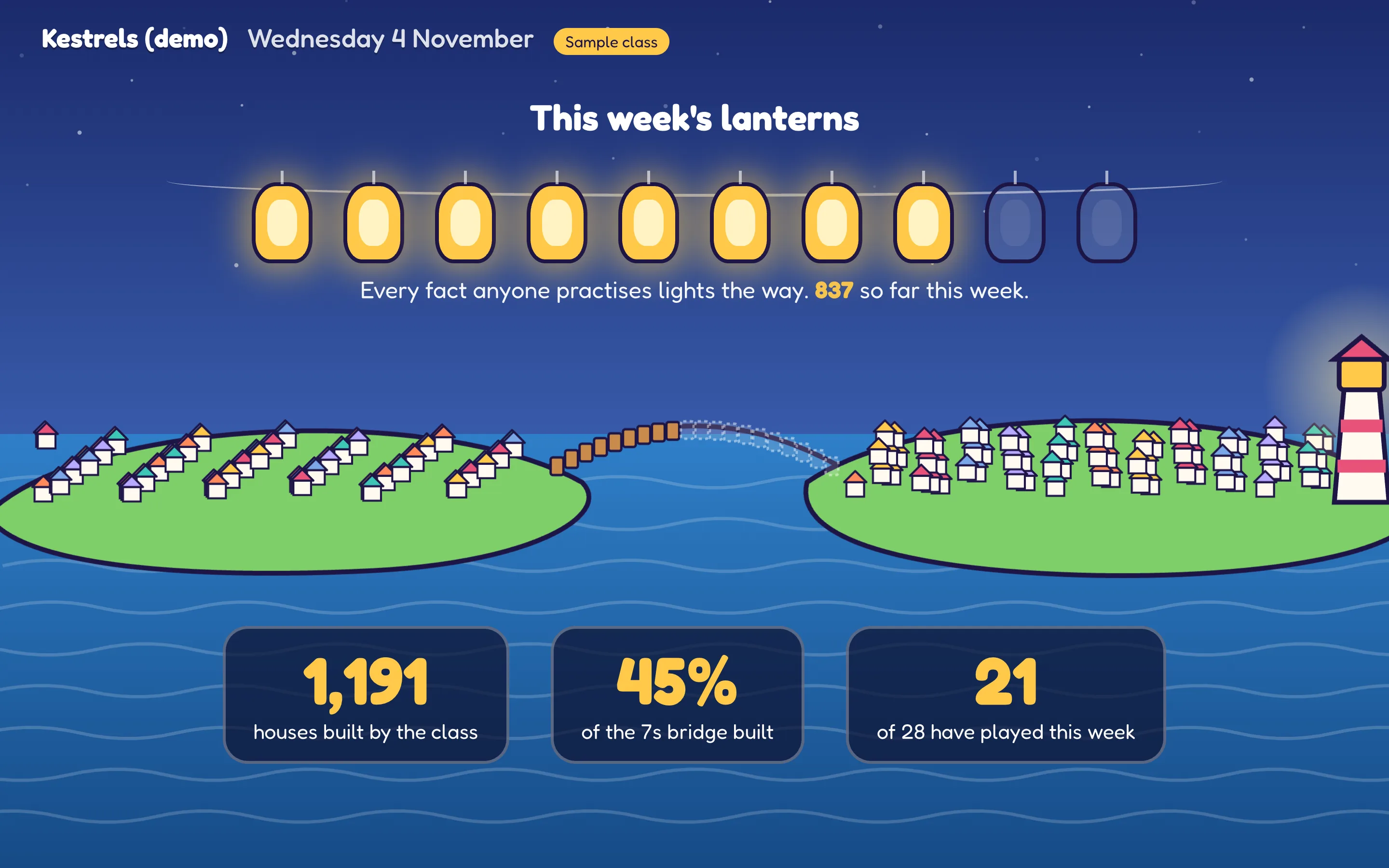
Class Live puts the class on the whiteboard: a lantern lights for every fact the class practises. When you start a live lesson, the Plaza glows in each child's town and their Buddy calls them over. It shows what the class did together, never who came first.
For Reception, carpet time puts one question at a time on the whiteboard. The class answers out loud, and you tap the class answer. Reception classes
Every child's own village. It grows from what they learn, never from where they come in the class.
Safe by design
- No child is ranked against another, anywhere.
- No free text from children on anything another child sees.
- No coins, no shop, nothing random, nothing to buy.
- No streaks to lose.
- Buddy names or initials on shared screens, never full names.
For your school
Is your school on Tuckbox?
Find your school to start a free trial, ask for a quote or an invoice, or tell your school about it.
Find your school
- My school isn't listedType its name instead
From the official list of schools in England. Wales, Scotland and Northern Ireland: choose “My school isn't listed”.
Pilot it with your class
We're looking for primary schools to pilot Tuckbox Play with us. Tell us who you are and we'll be in touch.
A pilot is free for a term. We set up your class, show you the teacher view, and ask you what's missing.
Take it with you (PDF):The full packFor teachers
Children can try the games now at play.tuckboxgames.com. School prices are on the pricing page.
